
Company Creation Wizard
 The button Add Company Wizard allows you to add a new company by following the required steps.
Please note: SigaFinance EVO allows you to manage multiple companies, but this requires the "Multi-company" license to be linked to your account. Once activated, you will be able to navigate easily from one company to another.
Wizard Steps
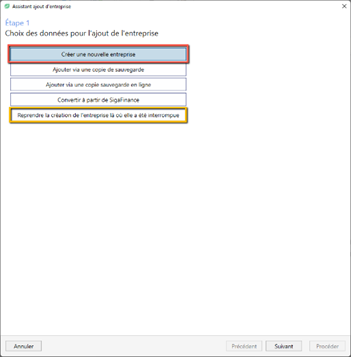 STEP 1 — Choice for adding a company
Action: Choose "Create a new company" to start an independent accounting file and customize it.
Tip: You can interrupt the process at any time and resume it later by selecting "Resume company creation where it was interrupted"
To continue: Click "Next"
STEP 2 — Company identification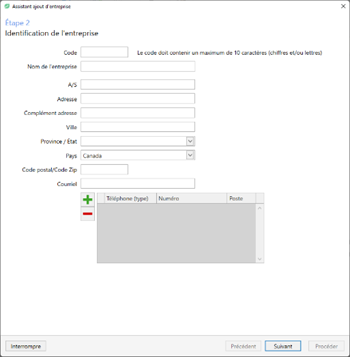
Action: Fill in the basic information to configure regional settings (tax rates, tax tables, government contributions).
Subsequent modification: Menu Home > button Companies
To continue: Click "Next"
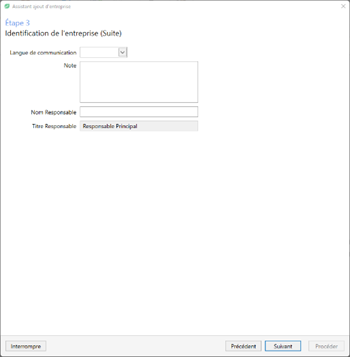
STEP 3 — Business Identification (continued)
Action: Enter the contact person's name (required field).
To continue: Click "Next"
STEP 4 — Choice of legal status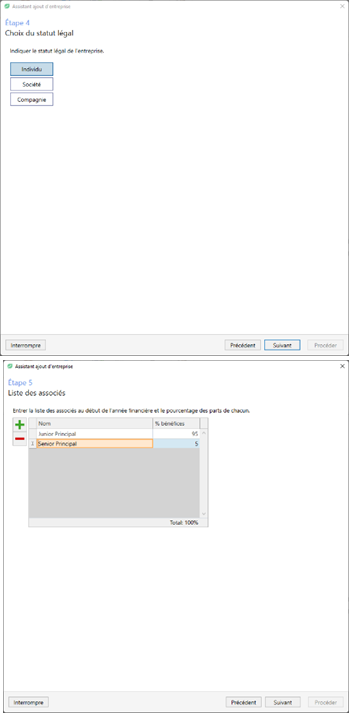
Impact: The status determines the structure of your chart of accounts.
Available options:
Individual: Sole proprietor (sole proprietorship/registered type).
Partnership: Multiple owners / partners (general partnership/SENC type). If you choose this option, the next step will allow you to add partners using the button (total shares must equal 100%). A capital, contribution, and withdrawal account will be created for each.
Corporation: Distinct entity from its managers/owners (incorporated/INC type).
Later modification: Menu Accounting > button Fiscal years / Change of legal status (see the document "How to... Modify the business structure" as needed).
To continue: Click "Next"
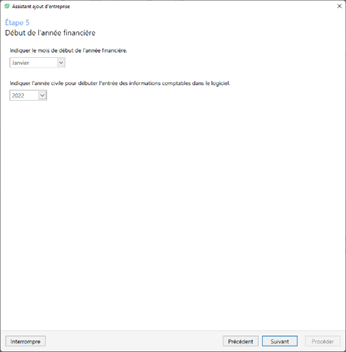 STEP 5 — Start period(Note: the original title mentioned status, but this is indeed the period)
Action: Select the start month and year of the accounting in EVO.
Warning: No entry will be possible before this date. If the business has already existed for a long time, choose the date you start in EVO (and not the business creation date).
Later modification: Menu Accounting > button Fiscal years (fiscal years can be more or less than 12 months).
To continue: Click "Next"
STEP 6 — Choice of productions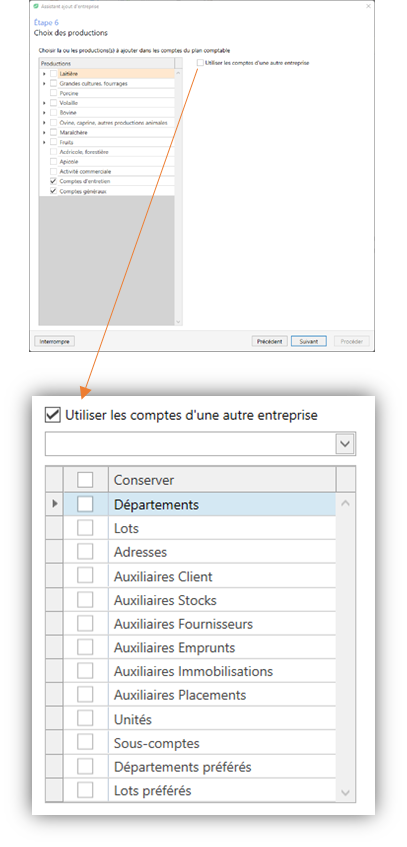
Action: Determine the productions to generate the adapted income and expense accounts.
Tip: If this is not your first business in EVO, you can copy the chart of accounts from another existing business by clicking "Use accounts from another business" (only codes and descriptions are copied, no amounts).
Subsequent modification: Menu Chart of Accounts > button Accounts
To continue: Click "Next"
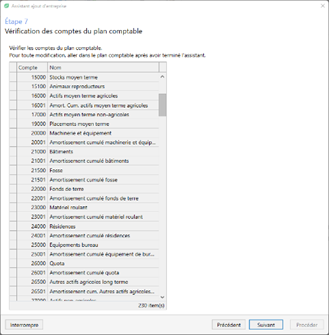 STEP 7 — Reviewing chart of accounts accounts
Action: Review a preview of the accounts that will be created (no direct modifications possible here). If you need to change anything, click Previous to modify your enterprise choices.
To continue: Click "Next"
STEP 8 — Tax filing period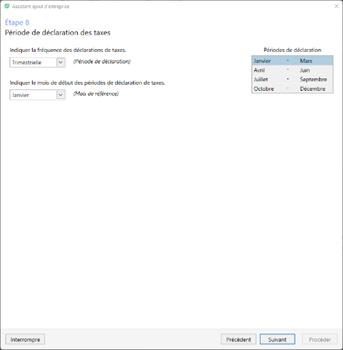
Action: Set up the tax filing frequency and period required by the government for your business.
Subsequent modification: Menu Chart of accounts > button Tax Setup
To continue: Click "Next"
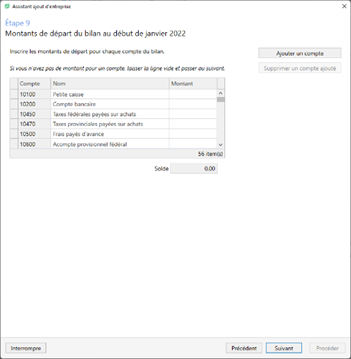 STEP 9 — Balance sheet opening amounts
Action: Enter the opening balance at the exact date.
Important:
If this is a brand new business with no history, leave the amounts at zero.
If you have history but do not have your figures yet, you can leave them at zero for now and 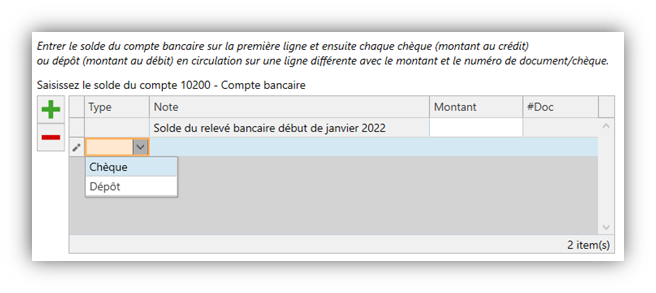 return to this step (available during the first year).
Certain accounts (bank, accounts receivable, accounts payable, inventory, etc.) require a detailed table (e.g., opening bank balance and outstanding checks/deposits) by clicking the button
Golden rule: The balance must be zero to continue, and the amounts must correspond exactly to your opening balance sheet.
Subsequent modification: Via the wizard "Modification of startup data" or by entering adjustments (menu AccountingAdjustment entries
Finalization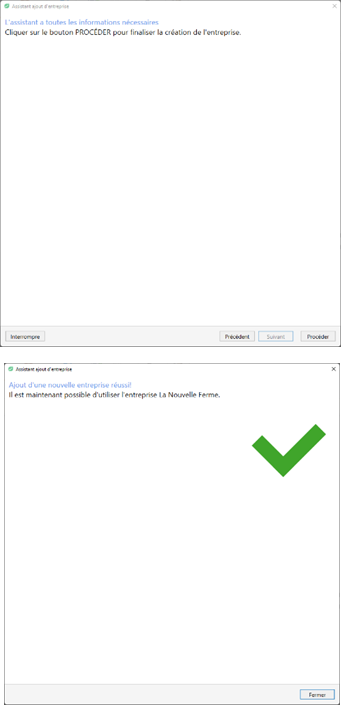
Once all steps are completed, click the button "Proceed" to officially create the business.
Need to make adjustments later? You will be able to modify any information using the wizard "Modification of startup data" (menu HomeBusinesses) or directly in the relevant sheet.